Waterfowl Model Guide
Turning the density layer on, and reading what it shows you.
The density layer starts off
The map opens clean. Open ⧉ Layers in the top-left and switch 🦆 Waterfowl density to On — until you do, no waterfowl data is drawn. The model buttons underneath stay greyed out while it is off.
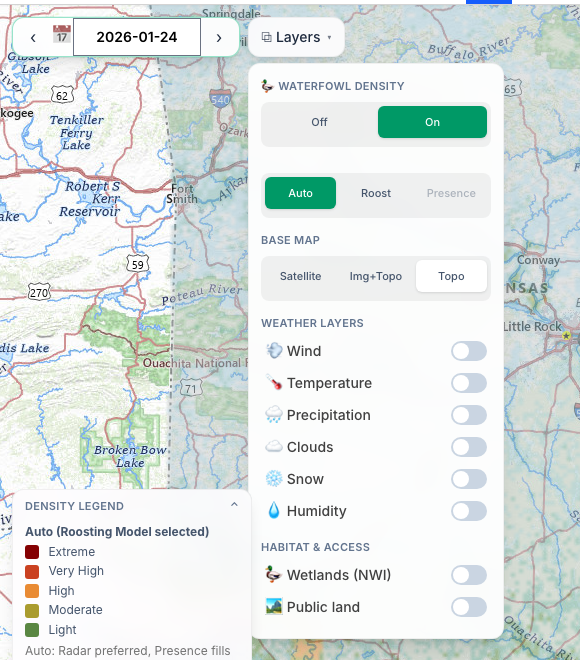
The layer draws where waterfowl have actually been observed, for the date you have selected. It is a record of nights that happened — it is not a forecast, and it never claims birds will be somewhere tomorrow.
The three models
Once density is on, pick the model underneath. The two are not the same data at different breadths — they start from different observations entirely, and each blends in habitat, weather and other inputs on top of its primary source.
- Auto — roost where it exists, presence where it does not. Start here: it gives you the strongest available reading for each area without you having to think about which source covers it.
- Roost — built on weather radar, which catches birds lifting off roosts at dawn. The sharpest signal for where ducks are sleeping, which is usually what you want when you are picking a morning spot.
- Presence — built on telemetry from banded birds, so it follows known individuals rather than reading a radar return. It reaches ground the radar does not, and it answers a slightly different question: which birds have used this area, rather than what lifted off it this morning.
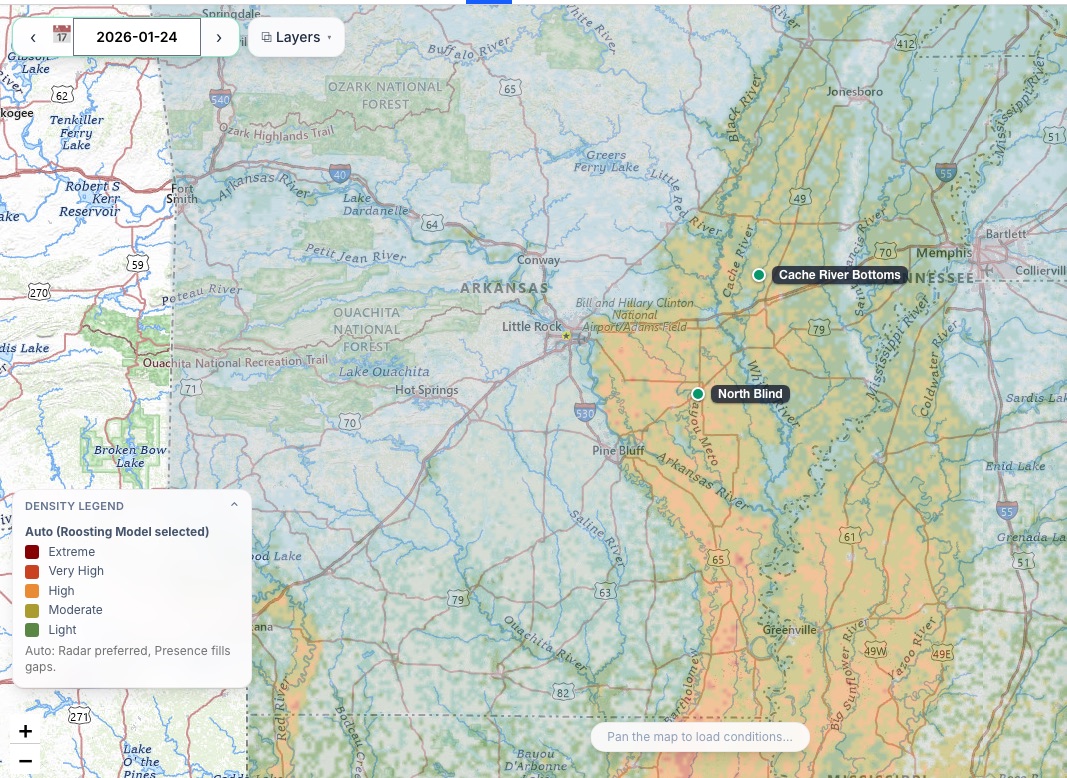
The map key names the model it is currently drawing — for example “Auto (Roosting Model selected)” — so you always know which of the two Auto has fallen back to at your location.
Reading the map
Colour is intensity of the nightly waterfowl signal, from Light through Moderate, High and Very High to Extreme. The key in the bottom-left is the authority — it changes with the model you have selected, so read it rather than memorising colours.
Zoom wherever you like. The layer picks its own resolution as you go, so there is no zoom band to fall out of and no point at which the data disappears.
Blank areas mean there was no clean reading for that date, not an absence of birds.
If the map looks empty
- Check density is switched On in ⧉ Layers. This is much the most common cause.
- Check the date. Out of season there is often genuinely nothing to show — try a winter date.
- Try Auto rather than Roost or Presence, so coverage gaps get filled.
- Switch the base map to Topo; colours are easier to see against it than against imagery.
See also Changing the Date and Base Layers.