Saving a Spot
Scout an area from the map, then keep it.
A saved spot is how FowlTracker starts keeping a record for you: once a place is saved, it gets its own roost history, weather, and a read on how it has been running, and it turns up on your Spots board every time you open the app.
Scout the area first
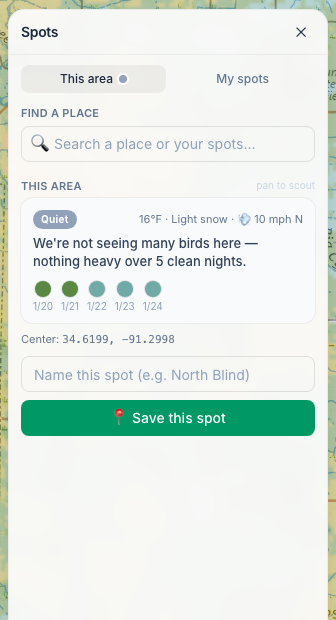
Pan the map so the place you care about sits under the centre crosshair. In the Spots pane on the right, the This area tab reads that exact point as you move — a verdict, the conditions, and the last five nights of roost activity.
That read is live. Pan a mile and it re-reads. It costs you nothing to check three places before saving one.
On a phone the pane starts collapsed at the bottom of the screen — tap it to open.
Save it
Give it a name in the Name this spot field — something you will recognise on a dark morning, like North Blind — and press 📍 Save this spot. It saves at the map centre, so the crosshair is what you are saving, not wherever you last clicked.
If the centre is already on top of something you saved, the pane tells you so and offers to take you there instead. Two blinds forty metres apart are still two spots, so there is also a Save a different spot here anyway option — you are never blocked from saving.
Finding your spots again
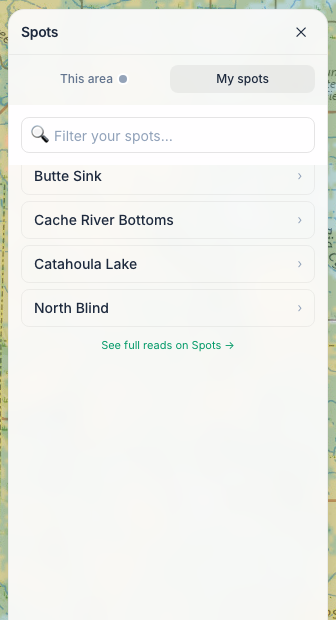
The My spots tab lists everything you have saved. Tap one and the map flies to it. There is a filter box at the top once the list gets long.
The full reads live on the Spots board, which is also where FowlTracker opens — the pane is deliberately just a fast list.
Saving spots is not limited by plan. What each saved spot then shows you is covered in Spot Historical Data.